A guide for Patty
Welcome to The Weekly Brief and The Workshop
Everything you need to know about your new website, written so you can come back to it any time and find your way around. Save this page. Print it if you want. It will always be here at pattyloew.net/welcome.html.
What this is
The Weekly Brief is a private weekly newspaper about Indian Country, written for you. It lands in your inbox every Sunday morning at patricia.loew@northwestern.edu, and lives permanently at pattyloew.net.
The Workshop is the second half of the gift: a private, password-protected drafting room where you can use the brief, twenty-five years of historical research we backfilled for you, and a drafting partner that knows your voice to update the third edition of Indian Nations of Wisconsin.
There are five things you can do here:
- Read this Sunday's brief
- Browse the archive of every issue
- Browse by nation, topic, person, anniversary, or source
- Search every story
- Log into the Workshop and draft for the third edition
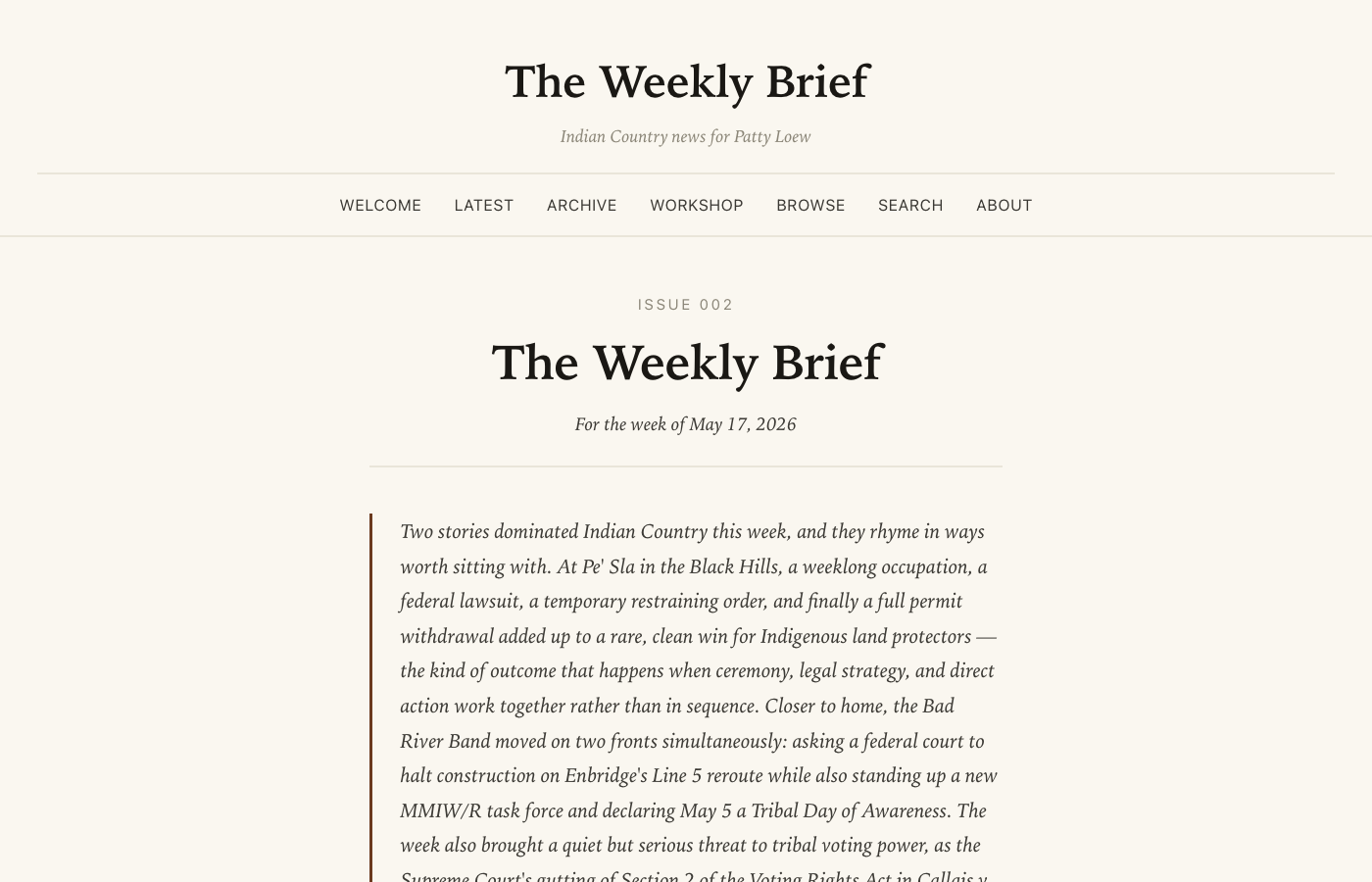
The homepage. The Welcome link at the far left is this guide. The other six links are the surfaces it describes.
The Weekly Brief
Every Sunday around 7 a.m. Central, an automated job wakes up, reads about thirty Indigenous and Wisconsin news sources, asks Claude to curate the most worthwhile twelve to eighteen stories of the week, and writes them up in your voice. The result is the issue you'll see at the top of the homepage and in your email.
Each issue contains:
- A one-paragraph summary of the dominant story of the week
- Stories grouped into seven sections (Wisconsin nations, treaty rights and water, Indian Country, climate and TEK, people and obituaries, culture and arts, and one long read)
- A Listen to this issue audio player at the top, in case your eyes are tired
- Tag pills for each story (the named tribes, topics, and people)
Older issues live at /archive.html. Every issue you've ever received is preserved there, oldest at the bottom.
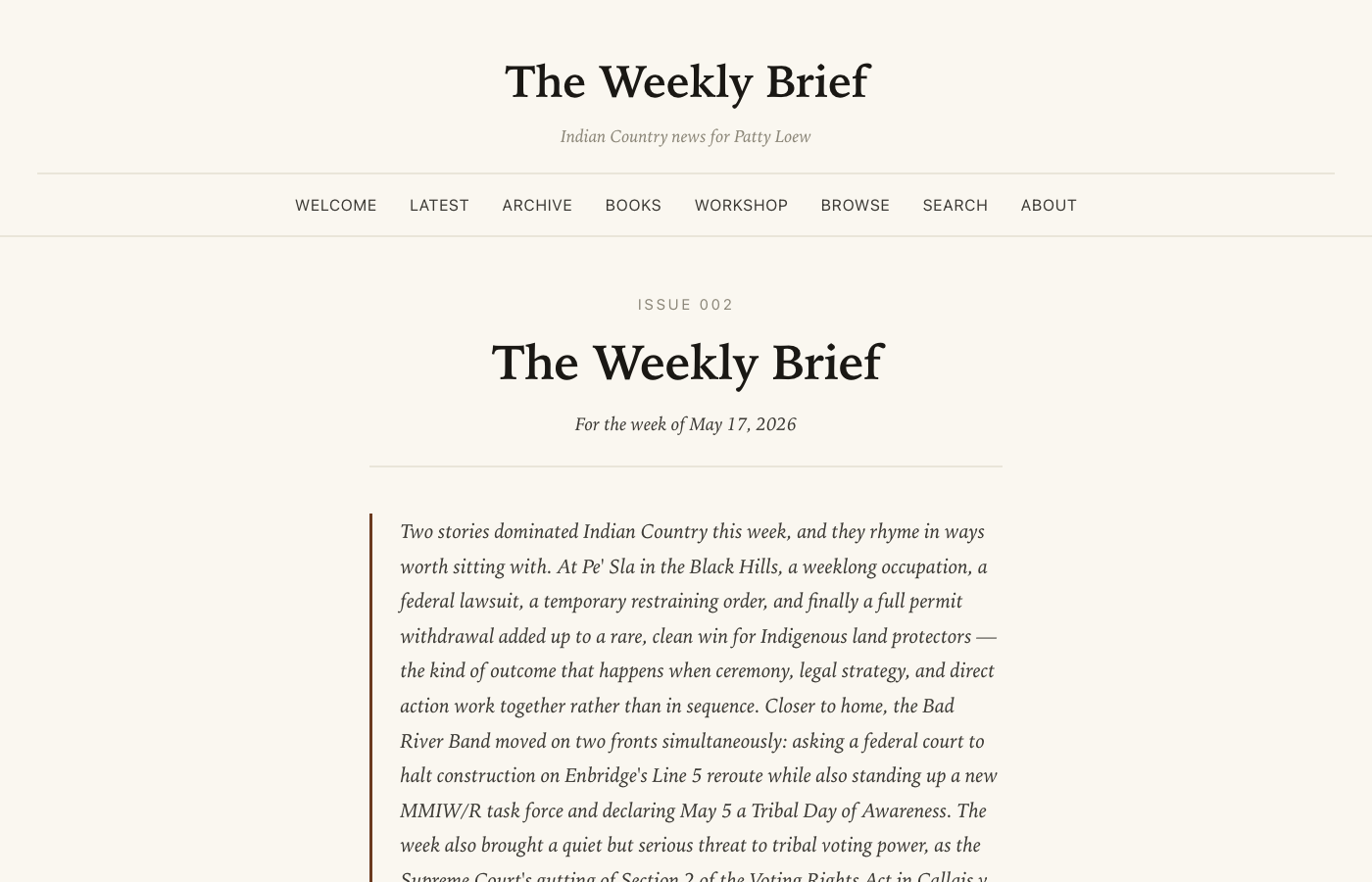
A sample issue page. The audio player at the top is the "Listen on your walk" version.
Logging into the Workshop
The Workshop is private. Only you (and Brooks, when he checks the feedback inbox) can see what's inside. To open it:
- Click Workshop in the top navigation
- Enter the password Brooks gave you when he handed you the gift
- You'll be signed in for thirty days; after that just enter it again
Once you're logged in, you'll also see new editorial controls appear under every story in the brief: thumbs up, thumbs down, save-for-chapter, and a note-to-self box. Those only show when you're logged in.
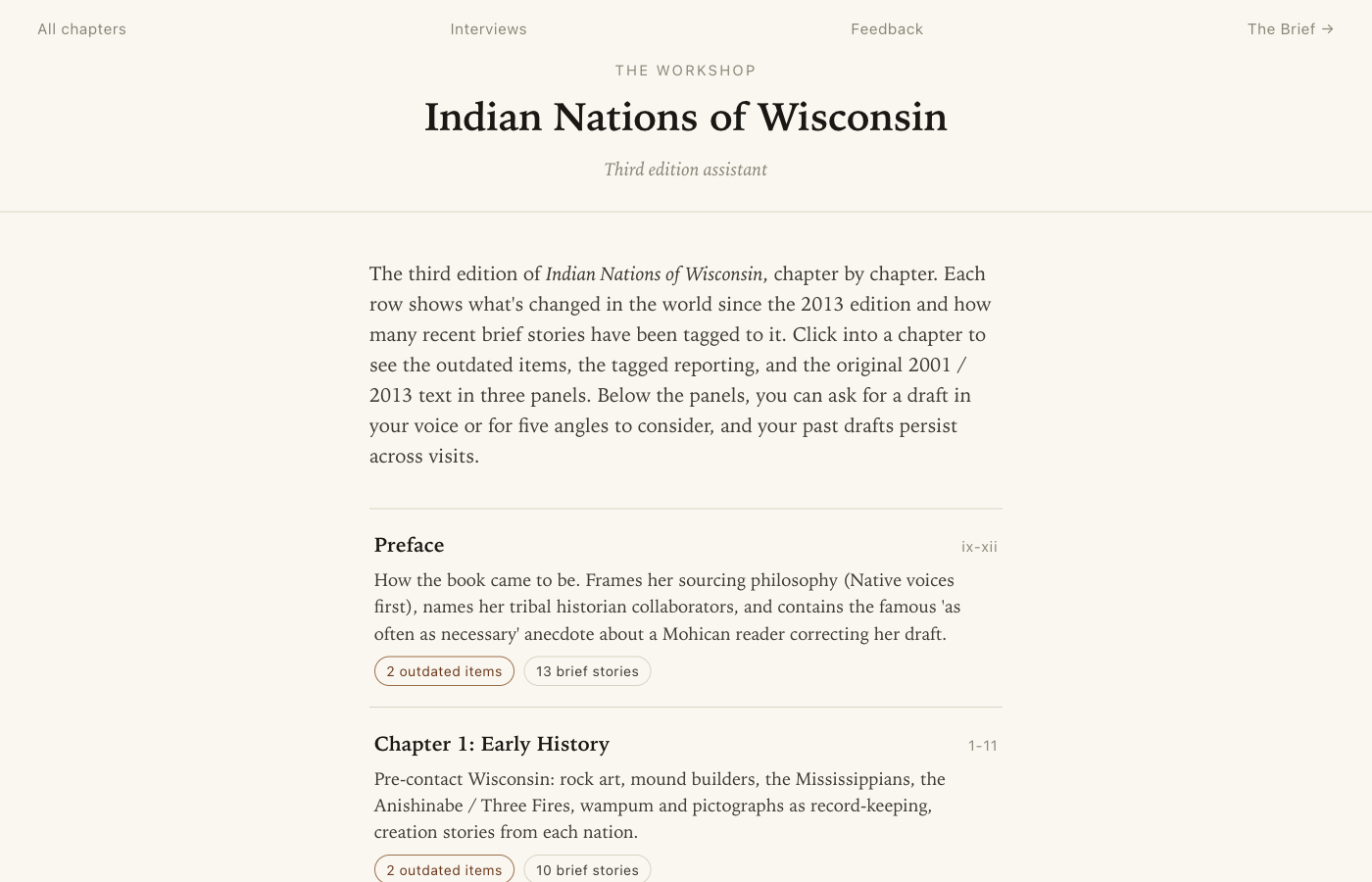
After login: the twelve chapters of Indian Nations of Wisconsin. Counts on the right show outdated items and tagged stories.
Inside a chapter workspace
After login you'll see all twelve chapters of Indian Nations of Wisconsin (second edition). Each row shows the chapter title, the page range, the number of curated outdated items, and the number of tagged stories. Click into any chapter to open its workspace.
The workspace stacks vertically from the top:
- Where to focus — a bar showing how many paragraphs in this chapter are flagged red or amber by the heat-map. Click to generate one if it isn't there yet. See the heat-map section below for what red and amber mean.
- Revise the 2013 chapter — a collapsed section. Click it open and you're in the manuscript editor where you actually edit the chapter text and export to Word with track changes for your publisher. See the "Revising the chapter" section below.
-
Three reading panels side by side:
- What's outdated — the curated list of things we've flagged as changed since the 2013 second edition. Hover any item to see a small × and pencil — × dismisses it (you can restore from the Dismissed drawer at the bottom of the panel), the pencil opens an inline edit form. A "+ Add an item" button at the bottom lets you type your own.
- Recent reporting — every story tagged to this chapter, both this week's brief and the twenty-five-year historical backfill, newest first. Hover any story to see an × — dismissing only affects what shows here in the workshop, not what's on the public brief. A "+ Add a note" button lets you write your own.
- Original 2013 text — your published chapter, paragraph by paragraph, with the heat-map highlights applied if you've generated one.
- Interviews you've tagged here — a row of cards, one per interview you've tagged to this chapter on the Interviews page. Each card shows the subject, duration (or "Text upload"), and the first few sentences of the cleaned transcript. Click the subject to jump to the full transcript on the Interviews page.
- Ask for a draft — the drafting bay, with three buttons (Draft / Brainstorm / Write your own), the past-drafts list, and Listen + Refine + Edit + Discard controls on each past draft. A Trash drawer at the bottom holds discarded drafts for thirty days where you can restore them.
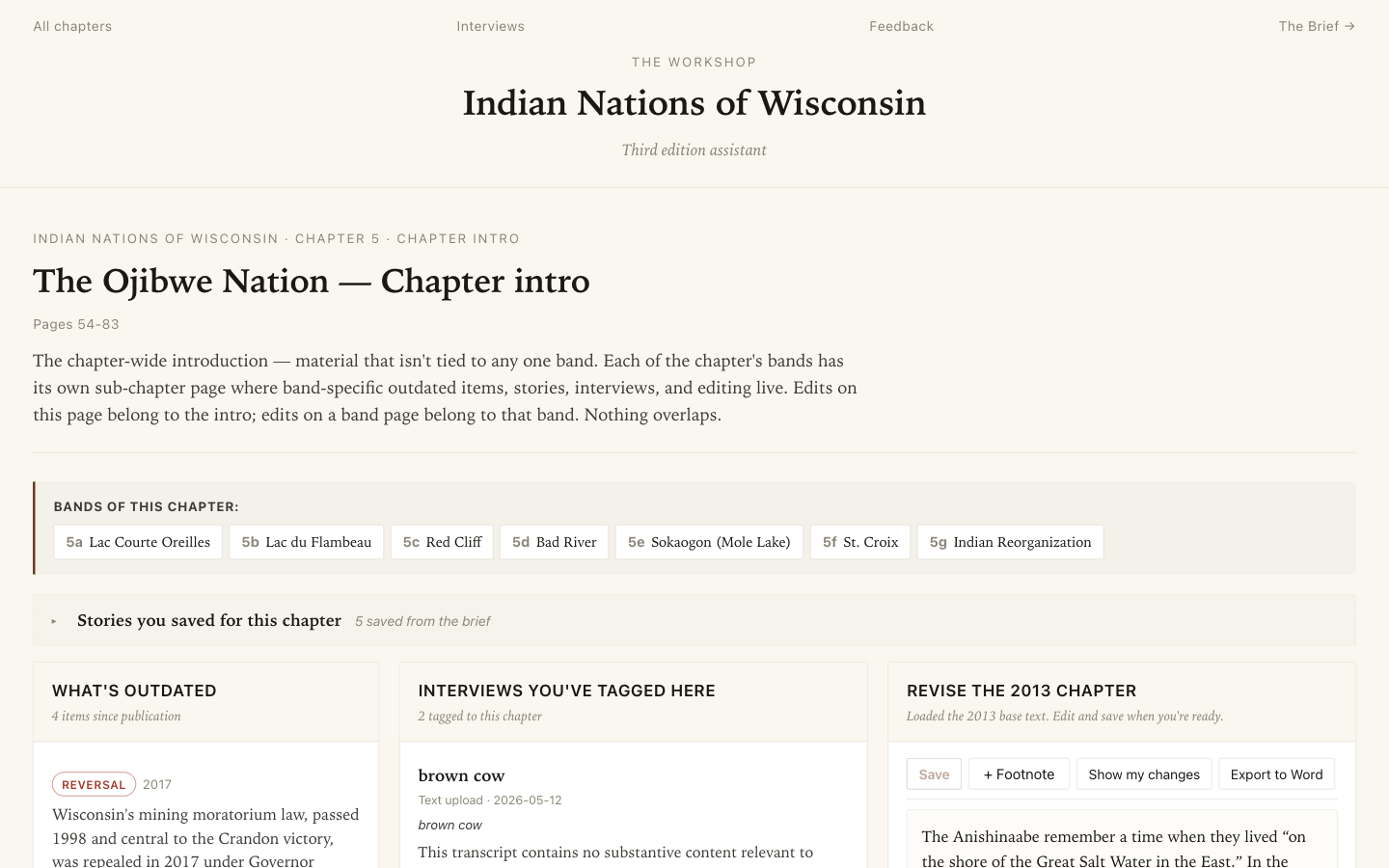
The Ojibwe chapter workspace. Everything you need to read, decide, and draft on the same page.
The drafting tools
The chapter workspace gives you five ways to put words on the page:
- Draft in my voice
- Type or speak what you want into the prompt box, click the button, and Claude reads everything in the three panels and writes a single short passage in your voice. Takes ten to twenty seconds. The draft saves itself to the past-drafts list below.
- Brainstorm angles
- Same as Draft, but instead of one passage you get five different angles you could take. Useful when you're not sure what shape the update should be.
- Write your own
- Opens an empty editor with no AI involvement. For when you want to write the words yourself. The blue Dictate microphone on this editor turns your spoken voice into clean prose (see the voice features section below).
- Refine
- Every past draft has a Refine button. Click it, type a specific change ("tighten this," "less academic," "add the Joe Rose angle"), submit, and you get a revised version alongside the original. You can refine a refinement.
- Patch this paragraph
- If you click a red or amber paragraph from the heat-map (see next section), you get a surgical edit instead of a full rewrite. Same length, only the stale claim updated. The before-and-after diff appears below the paragraph.
Every past draft also has an Edit button (for manual changes), a Listen button (audio readback), a Copy button (clipboard), and a Discard button.
Discarded drafts aren't gone. They move to a Trash drawer at the bottom of the chapter page, where they stay for thirty days. Open the drawer to restore one with a click, or permanently delete it. The same Trash pattern applies to discarded interviews on the Interviews page and to discarded feedback notes in the Feedback inbox. The confirm dialog reminds you of this every time, so you can click Discard without holding your breath.
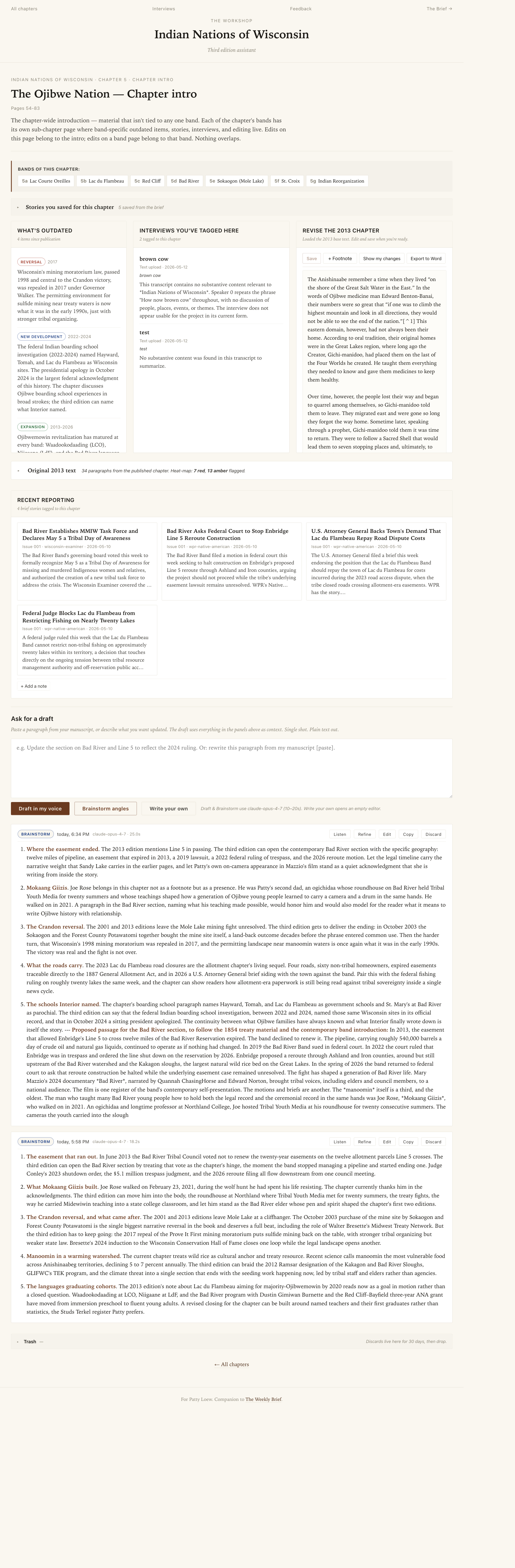
The full chapter page including the drafting bay at the bottom. Past drafts appear in chronological order below the buttons.
The voice features
Because you spent twenty-seven years as a broadcaster, the whole site is built so you can use your voice instead of your hands wherever it helps.
- The small round mic
- Every text field on the site has a small microphone button tucked in the corner. Click it, speak, click again to stop. Your voice goes to a service called Deepgram, comes back as plain text, and lands in the field. Use it on the draft prompt, the refine field, the note-to-self box, the feedback form, anything.
- The blue Dictate mic
- The Write-your-own editor has a different microphone: a pill-shaped blue button labeled Dictate. This one records your voice, sends it to Deepgram for the raw transcript, then to Claude for a cleanup pass that removes "um" and "you know," fixes run-ons, and leaves you with manuscript-ready prose. Your meaning is preserved exactly; only the disfluencies are cut.
- Listen to this issue
- Every issue page has an audio player at the top. About twenty-eight minutes of spoken-word audio in a warm female voice, generated automatically when the issue ships. The email also has a "Listen on your walk" link to the same audio.
- Listen on a draft
- Every past draft in the workshop has a Listen button. Click and you hear the draft read aloud. Useful for catching a rhythm that's off when you can't see it.
The heat-map and patch mode
Above the three panels on each chapter page is a section called Where to focus. If it shows a "Generate heat-map" button, click it. Claude (the slower, more careful Opus model) will read the entire chapter text against the outdated items and the tagged reporting, then color-code each paragraph:
- Red — this paragraph contains a specific factual claim that is now materially wrong
- Amber — this paragraph is still true but could be enriched with new material
- No color — this paragraph is timeless and doesn't need attention
Most paragraphs will not be flagged. A typical chapter has four to eight flagged paragraphs and the rest stay quiet. Hover any flagged paragraph to read why it was flagged.
Clicking a flagged paragraph opens a small panel directly below it offering to patch it — a surgical edit that keeps the original length, the original opening, and only swaps the stale claim for the current fact. You see the before and after side by side, and can save the patched version as a new draft.
The heat-map caches for seven days; click Refresh any time you want a fresh pass.
Revising the chapter
Above the three reading panels on each chapter page is a collapsed section labeled Revise the 2013 chapter. That's where you do the real work of editing. Click it open and the chapter text fills a wide editor seeded with the 2013 second-edition prose. You can type, paste, delete, restructure, anything.
The editor has three buttons across the top:
- Save
- Writes your current version to the server as a snapshot. Each save adds a new entry to the "Past revisions" drawer at the bottom so you can roll back to any earlier version. The status line at the top shows "Saved" with the time, or "Unsaved changes" in orange when there are edits you haven't committed. The editor also autosaves to your browser every ten seconds while you work, so a closed tab won't lose anything.
- Show my changes
- Toggles a read-only view of your edits in red. Insertions are red and underlined; deletions are gray and struck through. Same comparison the Word export uses, just rendered in the page so you can see your changes without opening Word. Click again to go back to the editor. Edits made after you toggled will refresh the diff on the next click.
- Export to Word
- Generates a .docx file of your latest saved version with standard track-changes markup against the 2013 base. Your insertions show in red with an underline; your deletions show in red with a strikethrough. Authored as "Patty Loew (via Workshop)" with today's date. Your publisher can open it in Word, click Review, and Accept or Reject each change exactly the way they would on a manuscript you sent them by email. Filename: <chapter>-revised-<date>.docx.
Below the editor is a Past revisions drawer. Click open and you'll see every save you've made for this chapter, newest first, with the character count and timestamp. Restore moves an older version back into the editor as the new latest. Discard sends a revision to the trash (recoverable like everything else).
The model the editor uses for the diff and the Word export is deterministic, not generative — there's no AI deciding what your changes mean. The Word doc shows exactly the text you typed minus exactly the text you replaced, sentence for sentence. Your publisher sees your edits, not a paraphrase.
Interviews
Twenty-seven years of broadcast journalism means you know how to talk to people. The Interviews surface, reachable from the Workshop nav or from the Browse umbrella, is built for that.
At the top of the page is a pair of tabs: Record or upload audio and Already have a transcript?
Under the audio tab, you can either:
- Record in the browser — give it a subject and a context note, click Record, talk, click Stop. Up to ninety minutes per recording.
- Upload a file — mp3, m4a, wav, mp4, anything up to 200 megabytes. Useful if you recorded on your phone.
When you submit, Deepgram transcribes with speaker labels ("Speaker 0," "Speaker 1") and Claude cleans the transcript into a readable version with paragraph breaks. Both transcripts are saved side by side; you can copy either.
Under the Already have a transcript? tab, you can skip the audio step entirely. Paste a transcript into the text area, or upload a .txt, .md, or .docx file — useful if Otter (or any other tool) has already done the transcription for you. Claude still does the cleanup pass to tighten punctuation and paragraph breaks, but no audio is sent anywhere. Each interview entry is labeled "Text upload" instead of a duration so you can tell at a glance how it got there.
Each interview can be tagged to one or more chapters and topics. Tags matter because once an interview is tagged to, say, the Ojibwe chapter, that interview's transcript is automatically included in the context when you click "Draft in my voice" on that chapter. A recording with Mike Wiggins Jr. becomes part of the Bad River chapter's drafting context.
The audio file itself is not stored on the server; only the transcripts are. If you ever want to keep an audio file, save it from your recorder before you upload.
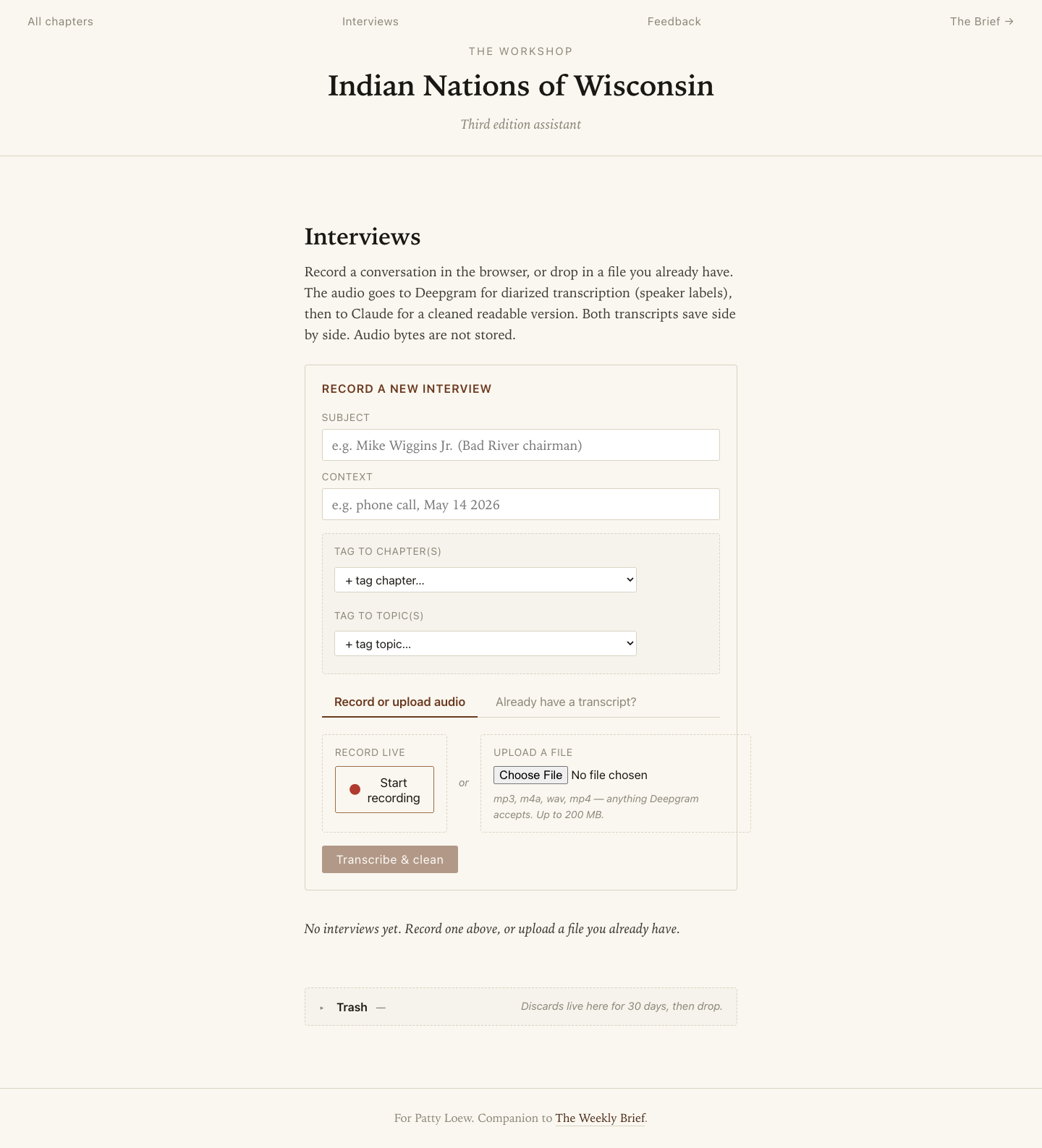
The Interviews page. Record live in the browser or upload a file, then tag the interview to chapters and topics before submitting.
Browse, search, and tag pages
The Browse umbrella in the top nav opens onto eight entry points:
- Nations — the twelve Wisconsin Native nations plus pan-Indigenous nations the brief follows
- Topics — persistent beats like treaty rights, Line 5, manoomin, MMIW, ICWA, language revitalization, mining, climate, gaming, federal recognition
- People — named figures the brief tracks; some are living, some are honored with a remembrance template
- Dates — curated anniversaries (this week, this month, round-year remembrances)
- Sources — every news source the brief reads from, organized by tier
- Books — your four books, chapter by chapter, with the curated outdated items and related stories per chapter
- Interviews — your recordings (workshop login required)
- Feedback — your private inbox to send Brooks notes (workshop login required)
Every tag page shows every story tagged with that slug — weekly brief stories and Background research items together, sorted newest first.
Search is one box. Type anything; results appear instantly. The search index covers every issue and every Background article. URLs are shareable: if you search for "manoomin" the URL becomes /search.html?q=manoomin and you can bookmark or share the link.
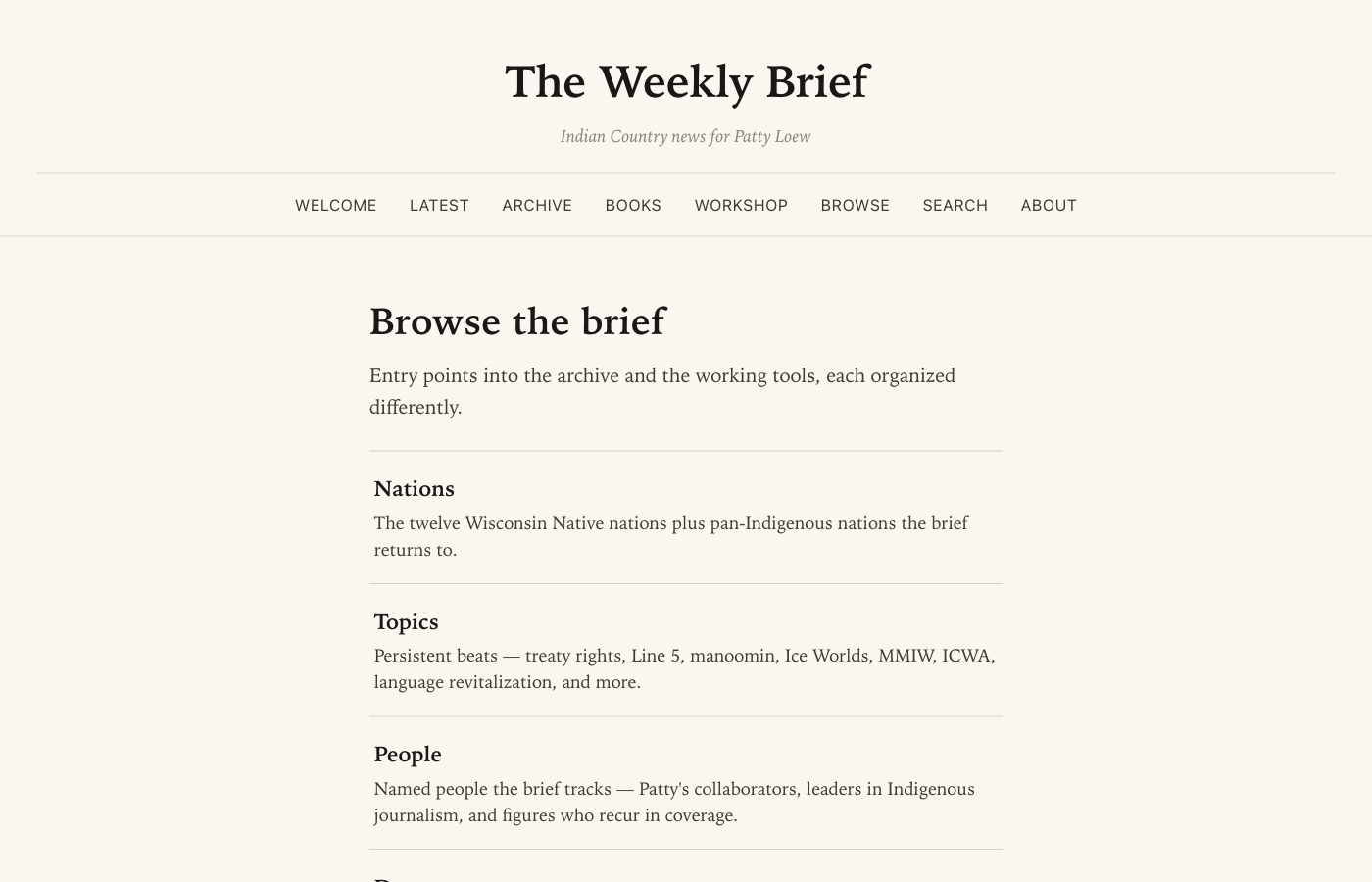
The Browse umbrella. Seven entry points into the archive and the working tools.
Editorial controls on the brief
When you're logged into the Workshop and reading any brief story, four controls appear under it:
- 👍 More / 👎 Less
- Your taste signal. Mark a story up or down. Next Sunday's curator sees every up and down you've ever marked, along with the source, section, tribes, and topics for each, and uses it as a soft preference. One thumbs-down won't blacklist a source, but a pattern of thumbs-downs on a topic or region will shift the weighting.
- Why? (tags that appear when you click 👎 Less)
- A small red row appears under the thumbs as soon as you mark a story Less. Four quick-tag buttons: Not Wisconsin, Not chapter material, Too general, Other. Click one to tell the curator why the story missed. The model uses these tags as your actual rejection criteria, not just inferred patterns. The row disappears if you change your mind and flip back to More.
- + save for chapter…
-
A dropdown of all twelve Indian Nations of Wisconsin
chapters. Picking one pins this story to that chapter's
workshop workspace under a "Stories you saved for this
chapter" panel.
For the Ojibwe chapter, the dropdown also lists each band as an indented sub-option: Ojibwe → Bad River, Ojibwe → Lac du Flambeau, and so on through all seven sub-sections of the chapter as the publisher organized them. Picking a band tags the story to that specific sub-section, and the curator weights band-level tags even higher than chapter-level ones. The other eleven chapters flow as single narratives in the book and have no sub-options. - Note to self
- A textarea attached to every story. Autosaves when you click away. Your private editorial scratchpad. The curator also reads what you write here, so notes like "this affects all Nations except Brothertown" or "Bad River-specific section" flow into the next brief as direct editorial direction.
What "Background" means
Throughout the site you'll see story cards with a small purple pill that says Background · 2014 or Background · 2023. Those are the sixty-four historical research items we backfilled for the third edition.
The brief itself is "what's the latest" — only this week's news. But the world has been moving for twenty-five years since the first edition. The Background articles cover that gap: Ada Deer's death in 2023, the Bad River Line 5 ruling arc, the Penokee Hills mining defeat in 2015, Walter Bresette's 2024 induction to the Wisconsin Conservation Hall of Fame, the Stockbridge-Munsee Catskills land settlement of 2010, and many more.
Background articles appear:
- On every tribe / topic / person tag page (sorted by date)
- Inside the workshop's chapter workspaces when tagged to a chapter
- In search results
They do not appear on the homepage or in the weekly email — those stay clean for current news.
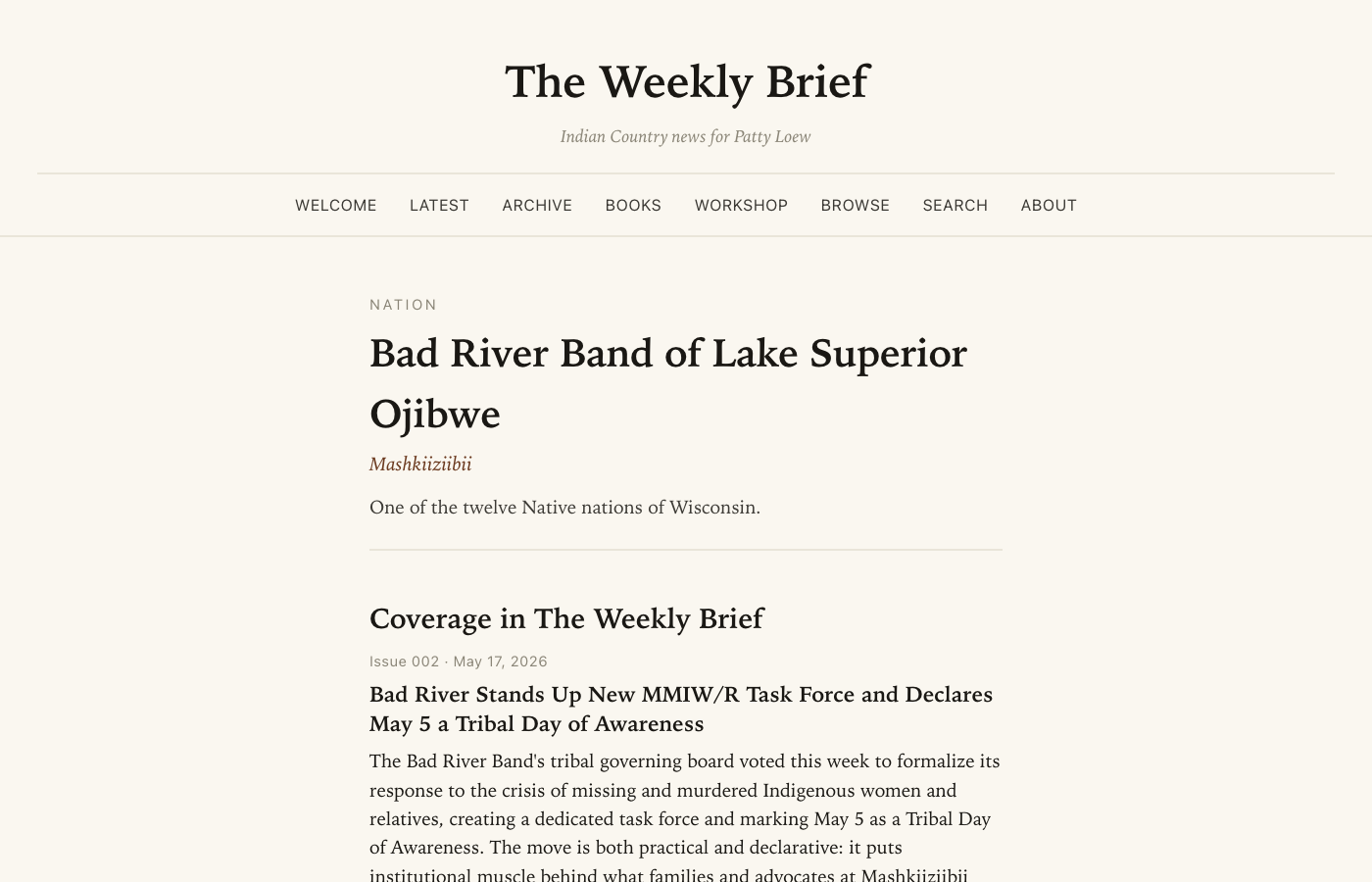
The Bad River tag page. Background items carry a small purple pill with the year; recent brief stories show their Issue number instead.
The feedback inbox
Anywhere you find yourself thinking "this could be better," "this is broken," "I want this thing the site doesn't have," click the Feedback link (in the workshop nav or under Browse) and write the note.
It saves to a private inbox Brooks reads at the start of every working session. You'll see all your past notes there too, in case you want to remember what you've asked for.
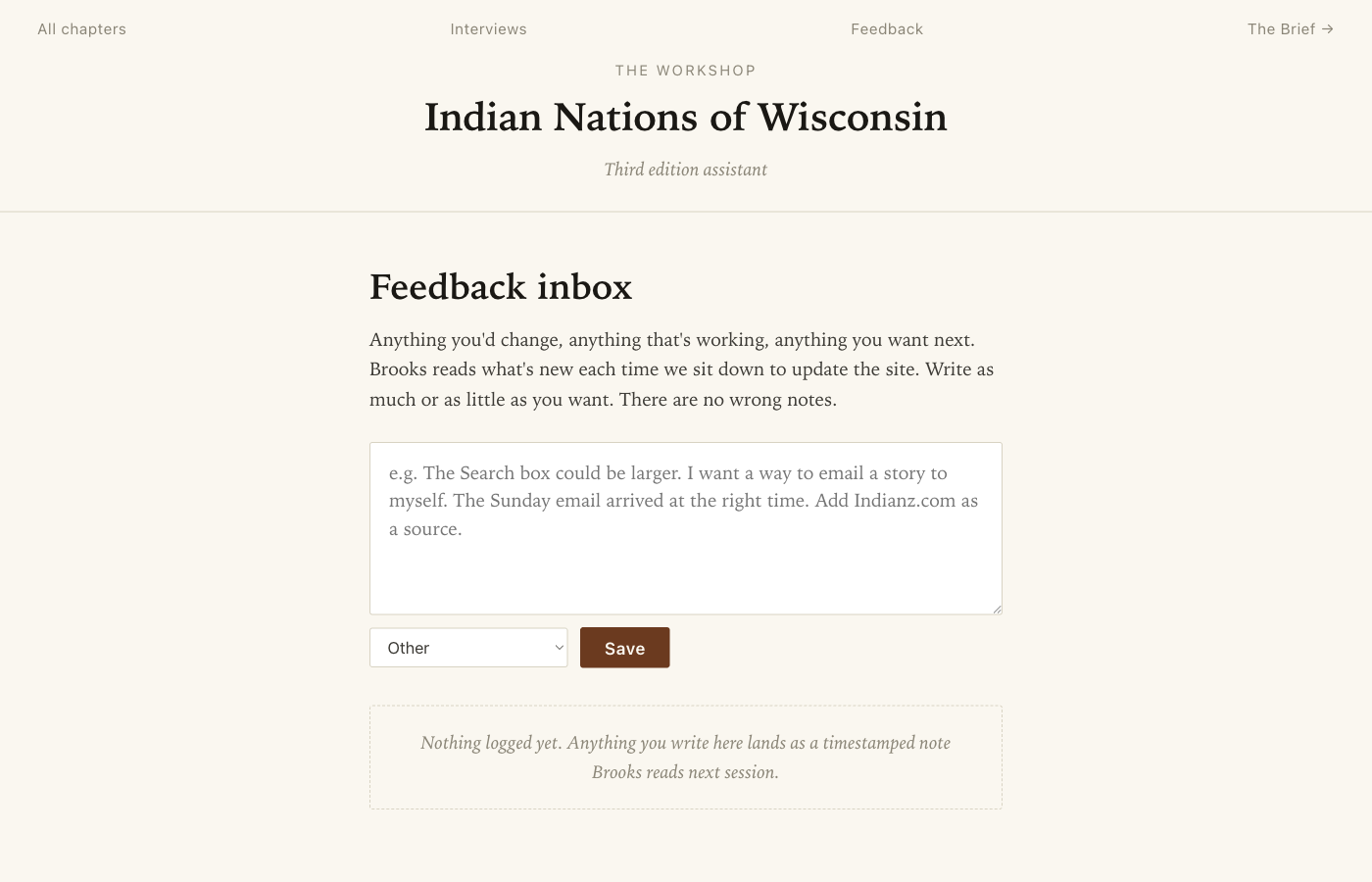
The Feedback inbox. Write as much or as little as you want. Brooks reads what's new at the start of every session.
The acknowledgments sentence
Scroll to the bottom of the workshop chapter list (the page you land on after login). Open the panel labeled For your acknowledgments — a sentence you can use in the third edition's front matter.
We've drafted a single sentence in your voice that discloses your use of AI as a research and drafting partner while reserving editorial authority to you and to the Bad River relatives and named elders who shaped the work. Edit it to taste. The Copy button puts it on your clipboard.
The 2026 publishing standard converges on a one-paragraph statement of this kind in the front matter. The University of Wisconsin Press will likely have its own template too, but our version is already in your voice if you want a starting point.
What happens automatically
You don't need to do anything to keep the brief running. Every Sunday around 7 a.m. Central, without you having to lift a finger:
- An automated program ("cron job") wakes up on the server
- It reads about thirty Indigenous and Wisconsin news sources
- It asks Claude (the slower, more careful model) to curate the most worthwhile twelve to eighteen stories
- It writes the headlines and blurbs in your voice
- It builds the HTML pages for the new issue
- It generates the spoken-word audio
- It emails the issue to patricia.loew@northwestern.edu
Cost to Brooks: about one to three dollars per week in API spend. Time you need to invest: zero.
The Workshop is different: nothing in the workshop runs on a schedule. Drafts, refinements, patches, heat-maps, interviews, and dictations only happen when you click a button. Each draft costs about $0.30 to $0.50; each heat-map costs about $0.20; each interview transcript costs roughly $0.05 per minute of audio. Brooks pays for it.
How it was built
If the technical terms aren't familiar, ignore them — the short version is that this is a small, careful machine that does its work quietly and cheaply. For the curious:
- Server
- A small computer ("VPS") in a Lithuanian Hostinger data center, IP address 76.13.97.127. The domain pattyloew.net points at it through DNS.
- Content engine
- Python scripts read the sources (RSS feeds, HTML pages, PDFs) and pass the candidates to Claude for curation. Claude returns structured JSON; the scripts turn that JSON into HTML pages.
- AI
- Anthropic's Claude models — Sonnet for curation and most extraction work, Opus for the slower careful tasks like heat-map scoring and consistency reading. Same Claude that helped you with your Storyworth.
- Voice
- Deepgram for speech-to-text (the microphones throughout the site, and the interview transcripts) and Aura for text-to-speech (the "Listen" audio you can play on any issue or draft).
- Frontend
- Plain HTML and CSS, no heavy JavaScript frameworks. Built to load fast and stay readable on any device. The typography is Iowan Old Style where available, Charter where Iowan isn't installed, with a quiet sans-serif for headings.
- Workshop
- A small Flask web application running on the same server, gated by your password. It saves your drafts, interviews, annotations, and feedback as JSON files on disk.
When something breaks
Email or text Brooks. He has full administrative access to every part of this system and can fix issues remotely.
Common things that look broken but aren't:
- "The microphone doesn't work"
- The first time you try it, your browser will ask permission to access the microphone. If you accidentally clicked "block," look for a small camera or microphone icon in your browser's address bar (or in Safari, Settings → Websites → Microphone) and switch pattyloew.net back to "allow."
- "The heat-map is taking forever"
- The first time you generate one for a chapter, expect about fifteen to twenty seconds. After that it's cached for a week and loads instantly.
- "I clicked Refine and nothing happened"
- Refines take ten to fifteen seconds. A spinning loading entry appears in the past-drafts list while you wait.
- "I can't log in"
- Check that you're entering the password exactly as Brooks gave it to you. It is case-sensitive and has no spaces. If it still won't work, email Brooks and he can reset it.
The bigger picture
This site is your weekly companion to Indian Country and your working room for the third edition. It is also a record of the work: every draft you write, every interview you record, every story you flag is preserved on the server and survives well beyond Mother's Day 2026.
The third edition will not write itself, but you now have twenty-five years of historical research, a weekly news engine that reads about thirty sources for you, a drafting partner that hears your voice, and an editorial gate that decides which weekly stories make it into your working room.
Brooks is here to keep it running, change anything you don't like, and add anything you find yourself wishing the site could do. This is v1.0. The v2.0 plan, when you're ready, is to sit down together with this guide and your feedback inbox open and decide what to build next.